

Your Sonos speakers sound great. But if they’re playing a personal streaming app, your business may not be covered to play that music in public.
This guide shows you how to use Sonos for business the right way. You’ll learn what licensing you need, how to connect Jukeboxy to Sonos in five steps, and how to schedule and control music at every location from one dashboard.
How to Use Sonos for Business Legally: Start With Licensed Music
Yes, you can use Sonos speakers in a restaurant, store, hotel, or office. The speakers are not the issue. The music service is.
Most popular streaming apps on Sonos are built for personal use. Their terms don’t include the licensing a business needs to play music for customers. Playing them in your business can put you at risk of fines from music licensing organizations.
Here’s the part many owners miss: just because a service appears in the Sonos app does not mean it is licensed for business use. Only a small number of services on Sonos are built for commercial music streaming. Jukeboxy Music for Business is one of them.
Jukeboxy provides commercially licensed background music for businesses in the United States and Canada. That includes applicable public performance licensing through organizations such as ASCAP, BMI, SESAC, and GMR in the U.S., and SOCAN and Re:Sound in Canada. You can read the details on our Legal and Licensing page.
If you want a deeper look at how music licensing works, our Christmas music licensing guide explains the basics in plain language. The same rules apply all year.
How to Connect Jukeboxy to Sonos in 5 Steps
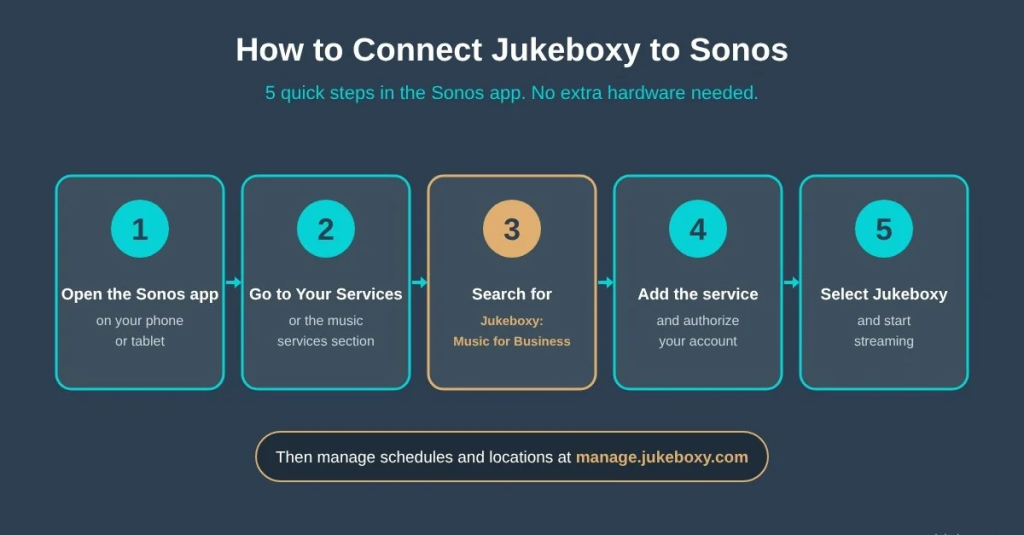
Setup takes a few minutes. You don’t need any extra hardware.
- Open the Sonos app on your phone or tablet.
- Go to Your Services or the music services section.
- Search for Jukeboxy: Music for Business.
- Add the service and follow the steps to authorize your Jukeboxy account.
- Select Jukeboxy from your music services and start streaming.
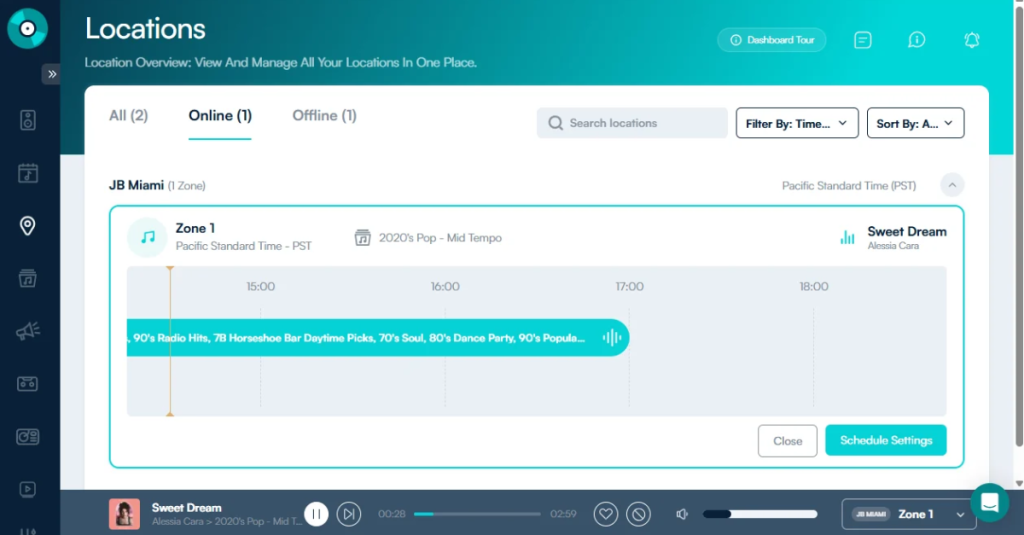
Once your account is connected, you can play music from the Sonos app. You can also manage everything from the Jukeboxy online dashboard, including schedules and remote control.
Note: Menu names and steps may vary depending on your Sonos app version and system setup.
What You Can Do With Jukeboxy on Sonos
Jukeboxy turns your Sonos system into a full business music platform. Here’s what you get:
- Commercially licensed music. Stream music made for business, with applicable background music licensing included.
- Sonos app integration. Find and play Jukeboxy right inside the Sonos app.
- Full remote control. Manage playback from the Jukeboxy dashboard, even when you’re not on the same network as your speakers.
- Automated scheduling. Build daily and weekly schedules so the right music plays at the right time, on its own.
- Curated playlists. Browse and choose from professionally curated playlists for every type of business.
- Multiple locations. Manage music at every location with a compatible Sonos system from one dashboard.
- Music preferences. Exclude genres, filter explicit content, and set other preferences for your brand.

Control Your Sonos Music Remotely From Another Location
This is where Jukeboxy saves owners and managers the most time. Authorized users can control Jukeboxy music on Sonos from anywhere. You don’t need to be on the same network as the speakers.
Picture a regional manager who oversees eight retail stores. From one laptop, they can:
- Change the playlist playing at any store.
- Create or update music schedules.
- Manage music across every location.
- Adjust music preferences without visiting the store.
No more calling a store to ask someone to change the music. No more driving across town to fix a playlist. Log in at manage.jukeboxy.com and make the change in seconds.
Sonos Zones vs. Managing Multiple Locations
Two features sound alike but do different jobs.
Sonos speaker grouping lets compatible speakers in the same Sonos system play the same music in sync. Think of the dining room, bar, and patio of one restaurant. Grouping depends on Sonos network and system requirements.
Jukeboxy remote management lets you manage music at different business locations from the dashboard. Each location’s Sonos system can run on its own separate network. You still control them all from one place.
Use Sonos grouping inside one building. Use Jukeboxy to keep music consistent across all your buildings.
Which Sonos Speakers Work With Jukeboxy?
All of them. Jukeboxy is a business music service inside the Sonos app, so it works with every Sonos speaker that runs the app. You don’t need a special business model.
That makes Sonos a practical choice for restaurants, retail stores, and offices. You get quality sound without running speaker wire through your walls. A café can play mellow music in the morning and something brighter for the lunch rush. A national chain can keep the same sound in every store. Learn more about our music for restaurants and music for retail stores.
Stop Staff From Changing the Music With Line In
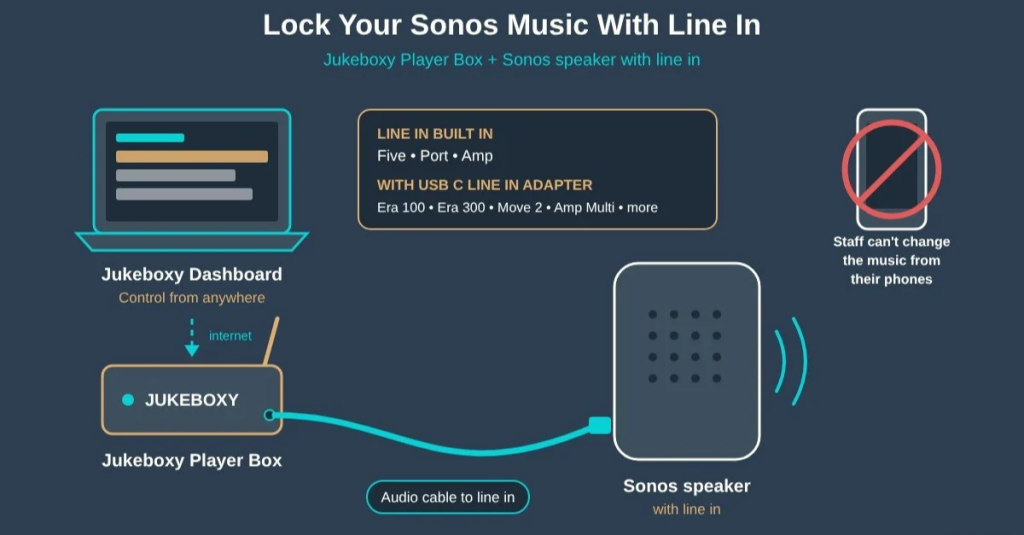
Here’s a common problem. Anyone with the Sonos app on their phone can switch the music, skip songs, or play their own playlist.
Some Sonos models have a line in option. That lets you connect an outside device, like the Jukeboxy Player Box, straight to your Sonos system. The music then comes from the Player Box, not the Sonos app. Location staff can’t change it from their phones, and you control everything from the central dashboard.
Sonos models with line in include:
- Built in, no adapter needed: Five (3.5mm port, also older Play:5 models), Amp (RCA inputs), and Port (RCA inputs)
- With the Sonos Line In Adapter or Combo Adapter (USB C): Era 100, Era 100 SL, Era 300, Move 2, Beam Ultra, Amp Multi, Sonos Play, and Move
This setup is a good fit for chains and franchises that want the same music at every location, with no surprises.
Sonos for Business FAQ
Can I use Sonos speakers in my business?
Yes. Sonos speakers can be used in restaurants, stores, hotels, and offices when they are paired with a music service that is licensed for commercial use, such as Jukeboxy Music for Business.
Is it legal to play Spotify or Apple Music on Sonos in my business?
No. Personal streaming apps are licensed for personal use only. To play music for customers, you need a service that provides commercial music licensing.
How do I add Jukeboxy to Sonos?
Open the Sonos app, go to Your Services, search for Jukeboxy: Music for Business, add the service, and authorize your Jukeboxy account. Then select Jukeboxy and start streaming.
Which Sonos speakers work with Jukeboxy?
All of them. Jukeboxy is a business music service inside the Sonos app, so it works with every Sonos speaker that runs the app.
Can I control Sonos remotely from another location?
Yes. With Jukeboxy, authorized users can change playlists, update schedules, and adjust music preferences from the Jukeboxy dashboard, even when they are not on the same network as the Sonos speakers.
Can I manage Sonos music at multiple locations?
Yes. Jukeboxy lets you manage music at every location with a compatible Sonos system from one dashboard, even when each location runs on its own network.
Do I need a Jukeboxy Player Box to use Sonos?
No. Jukeboxy works with every Sonos speaker through the Sonos app. A Jukeboxy Player Box is useful if you want to stop staff from changing the music. Connect it to a Sonos speaker with line in and control the music only from the Jukeboxy dashboard.
Get Your Sonos System Ready for Business
Knowing how to use Sonos for business comes down to two things: licensed music and simple control. Your speakers handle the sound. Jukeboxy handles the licensing, the playlists, the schedules, and the remote access.
Whether you run one café or a chain of stores, you can set it up once and let it run. Your team stays focused on customers, and your music stays on brand at every location.
Ready to stream licensed music on your Sonos system? Visit our Sonos for Business page, see Jukeboxy pricing, or book a free consultation with our team.
